

Work Order Software for Property Management, Filled In from the Photo.

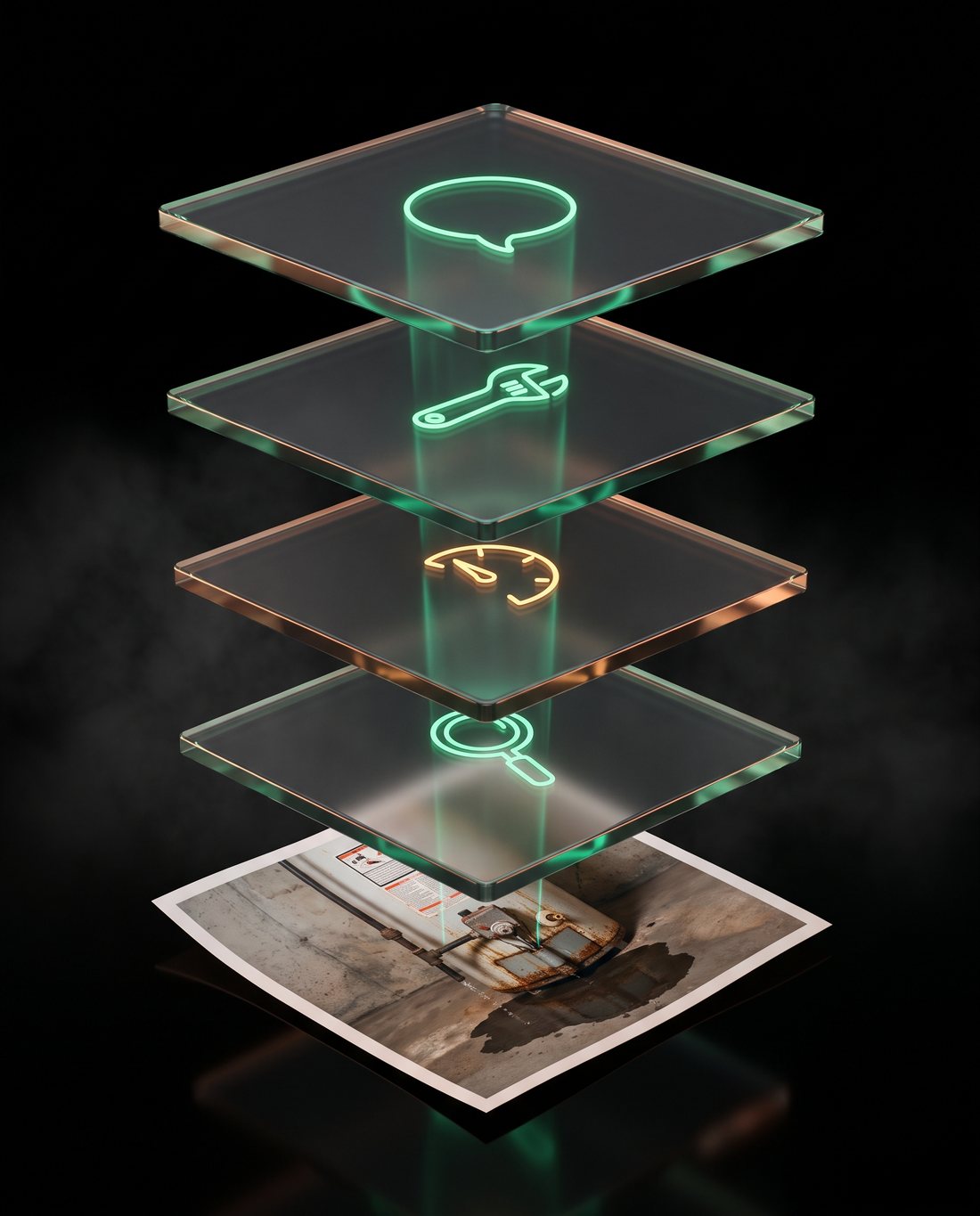
A resident sends one photo. In about ten seconds, fixRAgent fills in the work order: what it is, how urgent, which trade to call, and what to tell the resident. Copy it into your work order, or send it through our API straight into your work-order software.

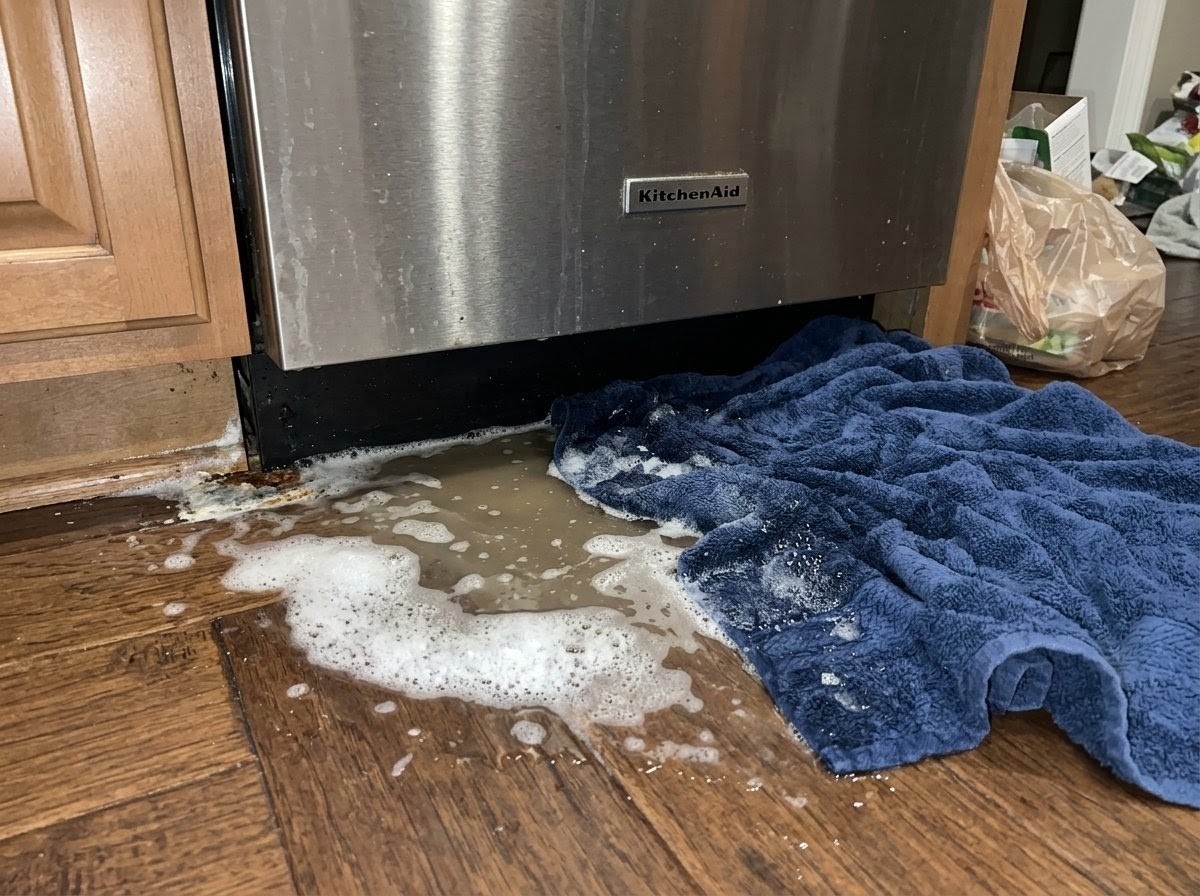
A resident's photo of a dishwasher with soapy water pooling on the wood floor under it and a towel laid down to catch itResident's photoWATER LEAK POOL
What it is
Dishwasher
How urgent
THIS WEEK
Who to call
Appliance Repair Technician
Say this to your resident

“Your dishwasher needs a look. It's not an emergency, and it's with the maintenance team. Turn off the valve that feeds the dishwasher. It's usually under the kitchen sink.”

The start of a work order, from one photo. This one is a real read: fixRAgent read the photo three times and all three agreed.

What Lands on Your Work Order.

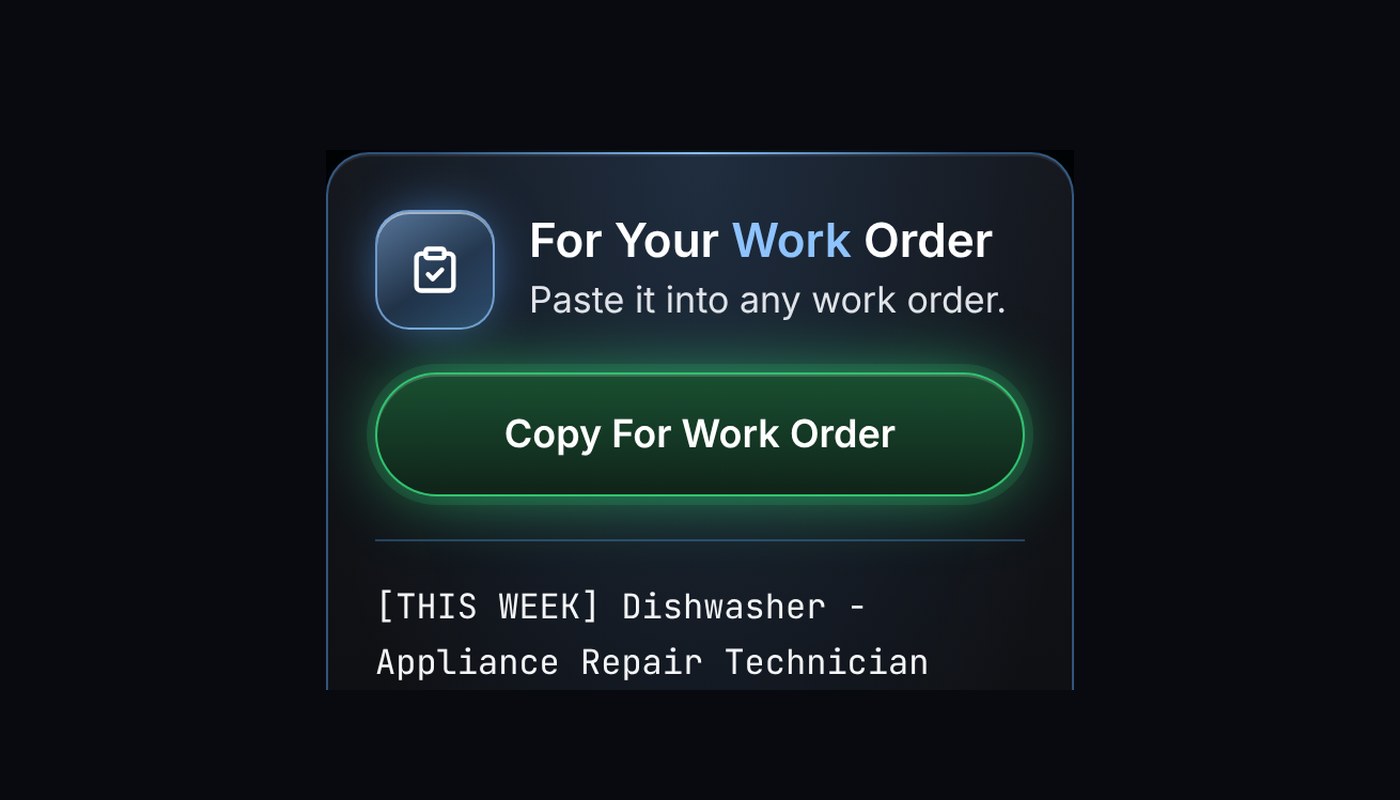
One tap on Copy For Work Order puts this on your clipboard. It is the real block from the dishwasher photo above, line for line. Paste it into the work order you already open.

[THIS WEEK] Dishwasher - Appliance Repair Technician

Priority: THIS WEEK. Next scheduled visit this week.
Description: Dishwasher - The photograph clearly shows an active water leak emerging from underneath the KitchenAid dishwasher, pooling on the floor with a towel placed to catch the spill, corroborating the resident report.
Photo: https://fixragent.com/api/shared-diagnosis?id=6195ce39-49fa-4a1c-8804-12799c310071&photo=1
Triage Profile: https://fixragent.com/c/6195ce3949fa

Who To Call: Appliance Repair Technician

Message For Resident: "Thanks for the photo. Your dishwasher needs a look. It's not an emergency, and it's with the maintenance team. Turn off the valve that feeds the dishwasher. It's usually under the kitchen sink. Don't run it until it's fixed. If water keeps coming after the valve is off, message me right away."

Read by fixRAgent from one photo.

Pasted as it comes from the real Triage Profile for this photo.

  1. 1
    Title lineUrgency, item and trade at a glance.
  2. 2
    PriorityEMERGENCY, TODAY, THIS WEEK or WHENEVER.
  3. 3
    DescriptionWhat the photo shows.
  4. 4
    LinksPhoto and Triage Profile, on any phone.
  5. 5
    Who To CallThe right trade, the first time.
  6. 6
    Message For ResidentReady to send as it is.

See It Work

What's a Triage Profile?

The one-page answer you get from a photo: what it is, how urgent, who to call, and what to tell your resident.

37 seconds. Captions are in the video.

Two Work Order Problems We Kept Hearing.

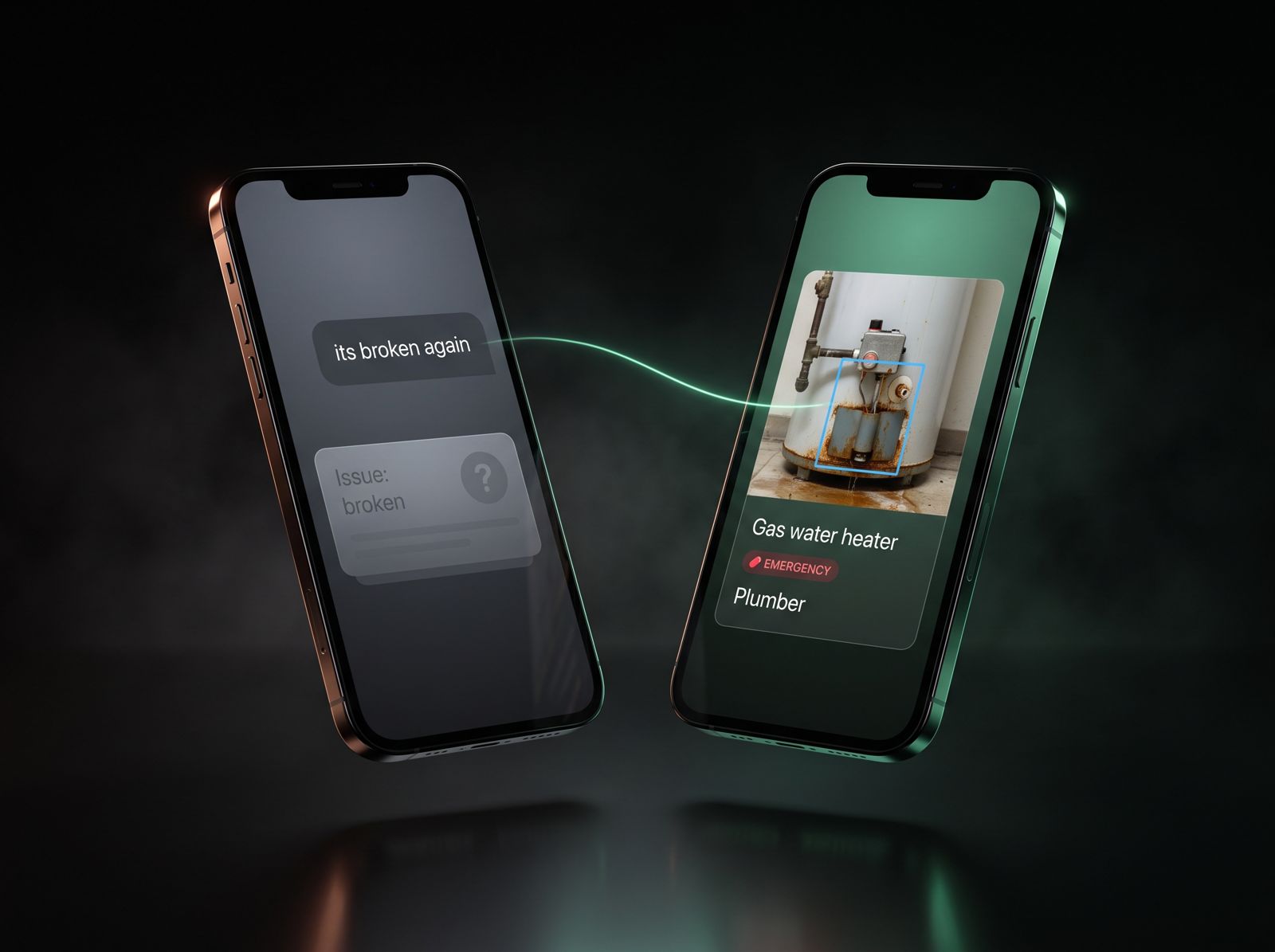
Two phones side by side. On the left, a resident's text says 'its broken again' and the card reads 'Issue: broken' with a question mark. On the right, the same report as a Triage Profile: gas water heater, EMERGENCY, plumber

The Work Order Starts Wrong.

Filled in from the photo

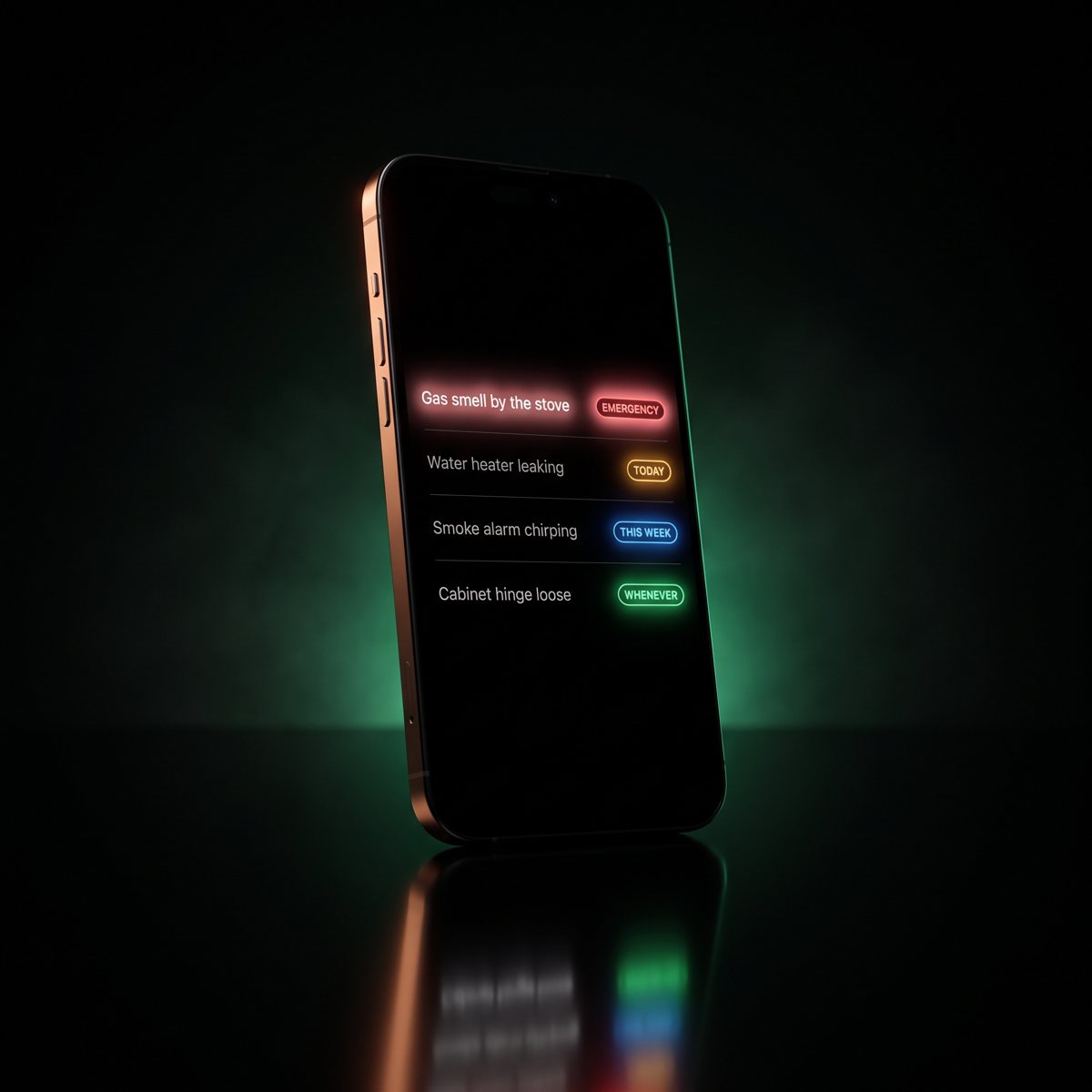
A resident writes “it's broken,” and that is what the work order says until someone drives out. With fixRAgent, the work order starts from the resident's photo: what it is, how urgent, and which trade. The person you send gets the same Triage Profile.
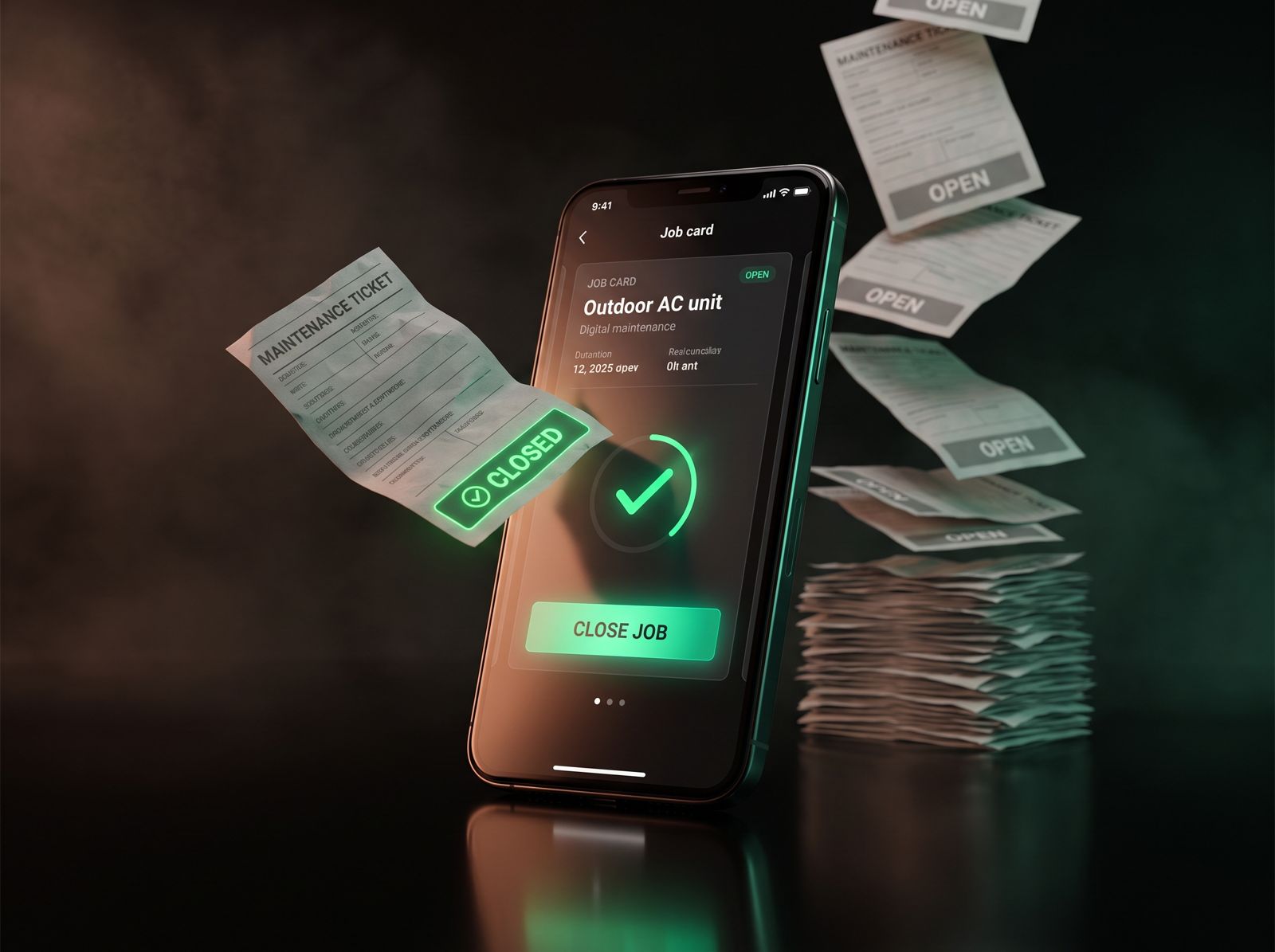
A phone showing the job card for an outdoor AC unit with a Close job button, beside a stack of open maintenance tickets and one ticket stamped Closed

Nobody Closes Out the Work Order.

Closed in two taps

Work orders sit open because closing them is one more chore. Close a job from your phone in two taps, and it moves to Closed and stays in that equipment's history, so next time you can see what was done.

From the Resident's Photo to a Closed Work Order.

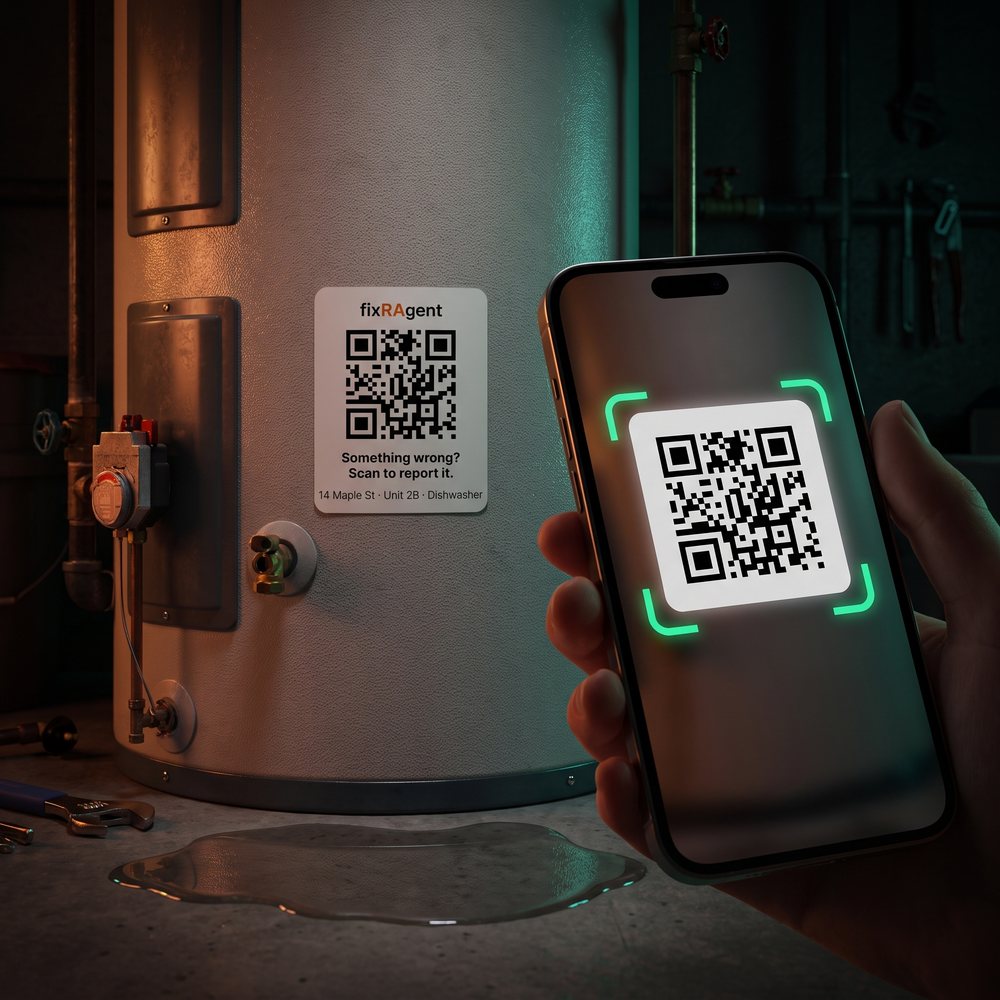
  1. A phone scanning a fixRAgent QR Sticker on a water heater1 · THE RESIDENT

    Scans the QR Sticker and Sends a Photo

    The QR Sticker on the equipment, unit or building opens the request. One photo, no app, no login.
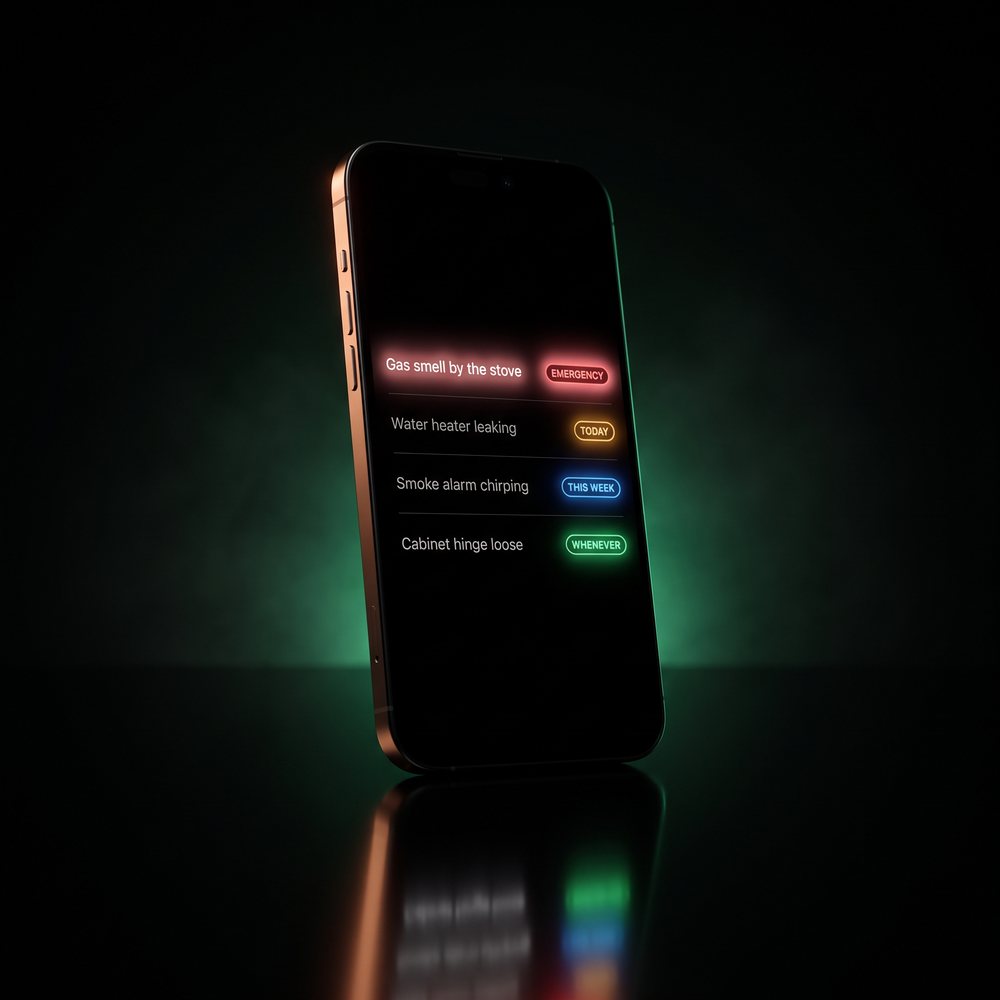
  2. A phone showing the queue, worst first, with urgency lights2 · YOU

    See It in Your Queue, Worst First

    Every work order lands in one queue, worst first. EMERGENCY and TODAY are emailed to you right away; the rest come in one morning summary. Something not right? Change it.
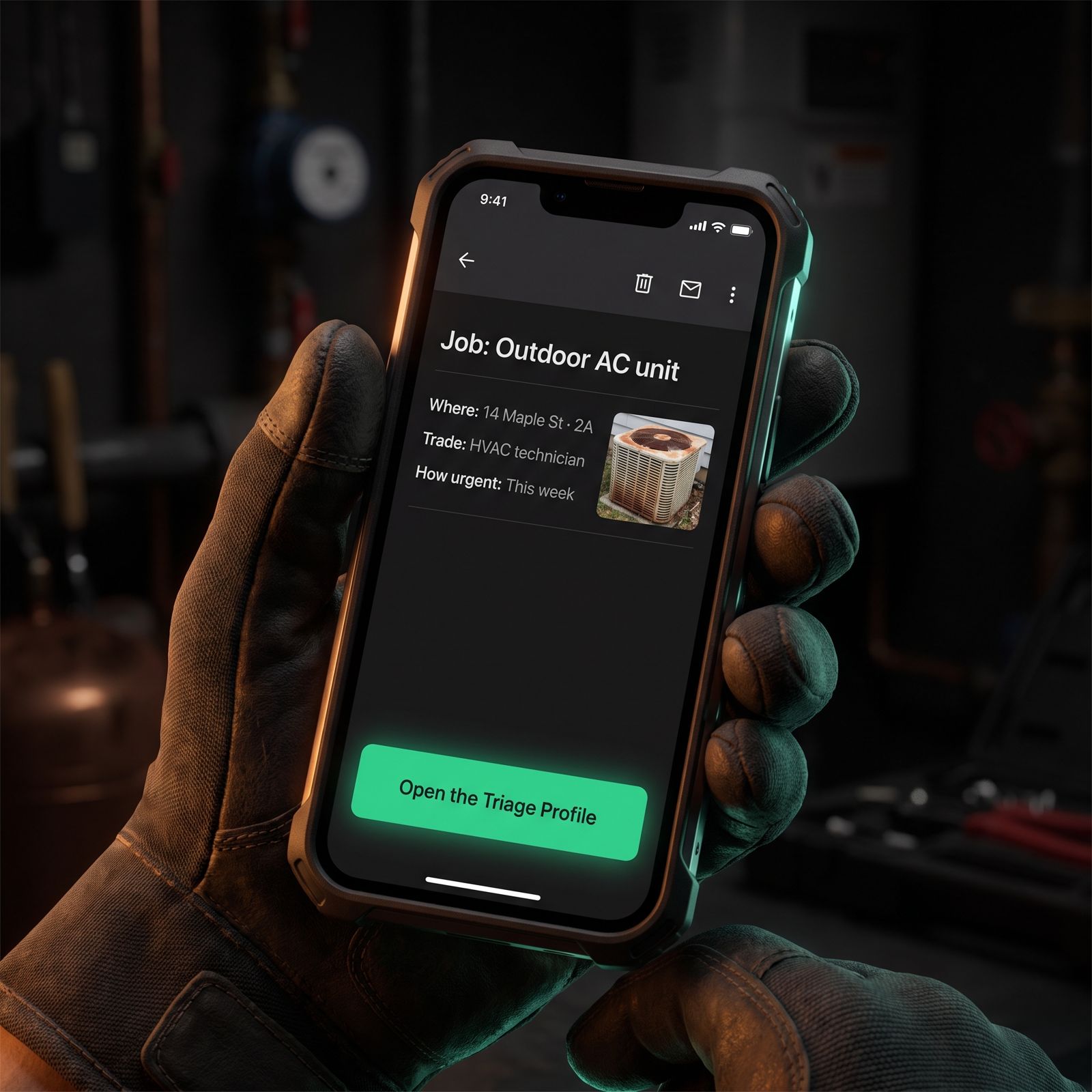
  3. A gloved hand holding a phone that shows the mail you sent: job, outdoor AC unit, 14 Maple St 2A, HVAC technician, this week, with an Open the Triage Profile button3 · THE PERSON YOU SEND

    Gets the Triage Profile, From You

    Pick who gets the work order. It goes out as a mail from you with the Triage Profile link: the photo, what it is, how urgent, which trade. Replies come back to you.
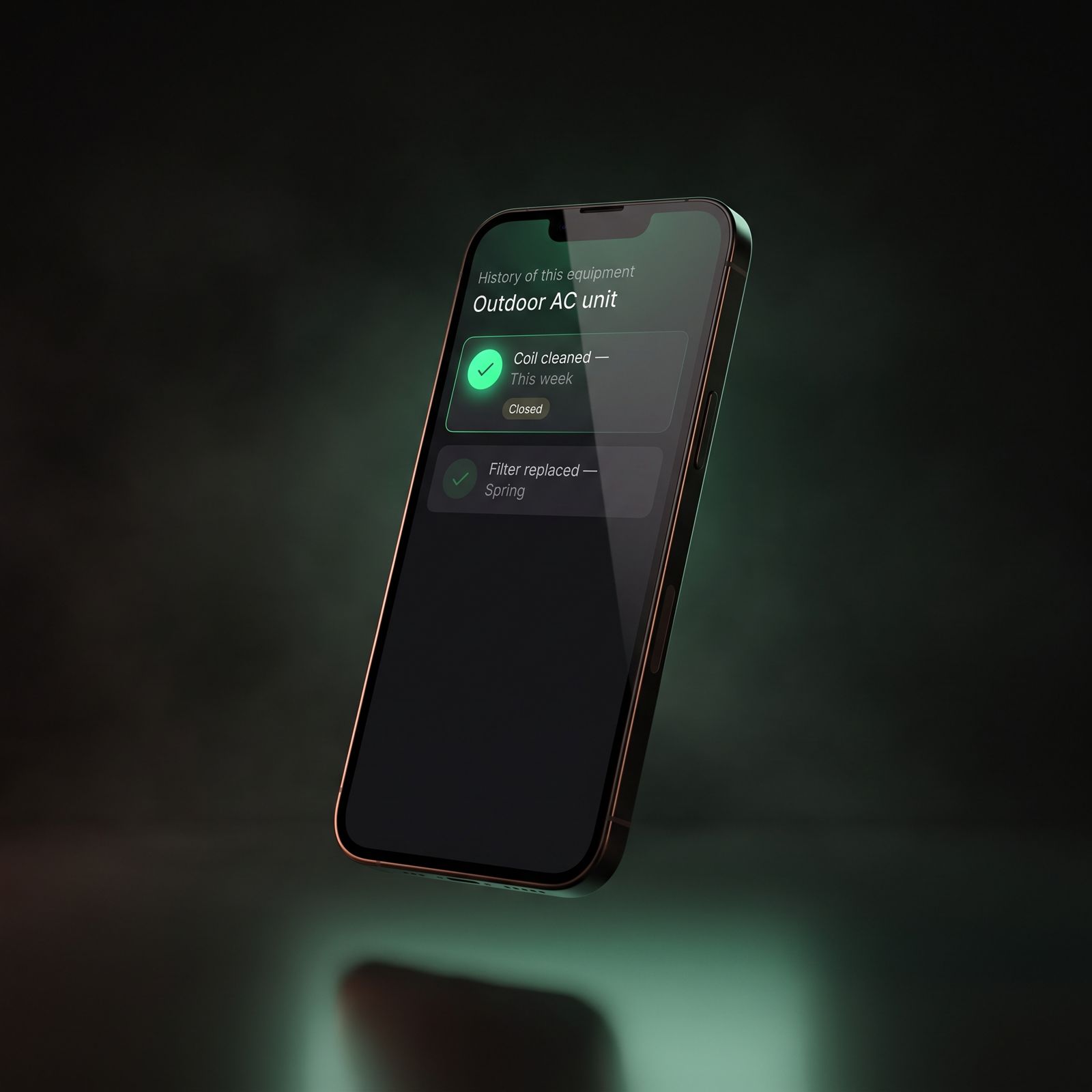
  4. A phone showing the history of an outdoor AC unit: coil cleaned this week, closed, and a filter replaced in spring4 · CLOSED

    The Job Stays in the Equipment's History

    Closed work orders move to their own tab. Open any equipment to see every job it has had, so the next one starts with its history.

Into the Work Order You Already Use.

Keep your work order system. The same Triage Profile goes in three ways; pick the one that fits how your team runs maintenance.

  1. The For Your Work Order box on a real Triage Profile: a Copy For Work Order button above the text it copies: [THIS WEEK] Dishwasher - Appliance Repair Technician, then Priority and Description1 · COPY AND PASTE

    Copy It Into Any Work Order

    One tap copies the job in work-order order: priority, description, the photo and Triage Profile links, who to call, and the line for the resident. Paste it into the work order in AppFolio, Buildium, Yardi or a spreadsheet.
  2. A phone showing the fixRAgent queue, worst first, with urgency lights2 · IN YOUR QUEUE

    Or Run It From Your Queue

    One queue for all your buildings, worst first. Send the job to your vendor or your team, close it in two taps, and it stays in that equipment's history.
  3. A resident's photo with glowing layers above it: what it is, how urgent, who to call3 · THROUGH OUR API

    Straight Into Your Work-Order Software

    The Triage Profile as data your software can read. Free demo key at fixragent.com/docs.

What Managers Ask Us.

What is work order software for property management?

It is the software a property manager uses to turn a resident's maintenance request into a job: what is wrong, how urgent it is, who to send, and when it was closed. fixRAgent fills in the start of the work order from the resident's photo. In about ten seconds you have what it is, how urgent it is, which trade to call and what to tell the resident. How the rest of it works

What goes on a fixRAgent work order?

A title line with the urgency word, what it is and the trade; the priority, one of four words (EMERGENCY, TODAY, THIS WEEK or WHENEVER); a description of what the photo shows; links to the photo and the Triage Profile; who to call; and a message for the resident.

Do I have to replace AppFolio, Yardi or Buildium?

No. fixRAgent works beside the software you already run (see how); there is no native integration yet. Copy the work order in one tap and paste it into the work order you open there, or send the Triage Profile through our API straight into your work-order software.

How do residents send a maintenance request?

They scan the fixRAgent QR Sticker on the equipment or their unit and send one photo. No app and no login. You can also forward a resident's photo by email.

How does it decide how urgent a work order is?

fixRAgent reads the photo three times, then sets one of four words from fixed rules, so the same facts always give the same word: EMERGENCY, TODAY, THIS WEEK or WHENEVER. Your queue sorts by them. EMERGENCY and TODAY are emailed to you right away; the rest come in one morning summary. Emergency, urgent or routine?

Can I send the work order to my vendor or my own team?

Yes. You decide who goes. They get the job as a mail from you, with the link to the Triage Profile: the photo, what it is, how urgent it is and which trade. When it is done, close it in two taps and it stays in that equipment's history.

Who built it

By Property Managers, for Property Managers.

Ali and Russ ran their own rentals and fixed things themselves. fixRAgent is the tool they built for that job.

Russ and Ali, the founders
Russ and Ali
fixRAgent

Set Up Your Buildings.

Triage the photo. Route the fix.